2018 ~ Dee Techno Tips

Thursday, December 20, 2018

Between Me and My Laptop


Between Me and My Laptop

(this article is part of my English and Grammar training, feel free to give critique and advice for me, Thank you)
Today I will going to tell you about what is going on with me and my laptop. Hope you can enjoy it.
Computer ? Computer is my best friend. I always like playing computer since I was a kid. I’m a different kid at that time, I had a disease that makes me different. Even until now and the disease’s gone, I can’t live in a normal way because I have so many anti-social treats because of my disease and my childhood. Back then, After school I will directly went to my home and then playing computer or games on computer until dawn. It's really exciting when you can do what you like all time, and that's what I do until now, playing on computer/PC. 

Nowadays, I don’t use computer anymore as my personal PC and choose Laptop as my new friend. You can't bring PC anywhere you want, and I want something that I can bring with me all the time (mostly). I always (mostly) carry my laptop everywhere because Laptop is like my world and it’s really important for me, there are just so many things or activity that I do with my laptop .  Mostly  all of my daily basis activity are done by using laptop such as making an article for my blog by using Microsoft Office, do vector designing, make a video tutotial and editing video, or doing a leisure activity like social media, reading an article/book/magazine/novel/comics. I’m a blogger, part time vector designer, and a video maker and a college student so Laptop is just like my main machine .


I can say that computer is my passion because mostly everything that I can do is by doing it in my laptop. I always like something about technology because if you can use the technology properly, there just tons of benefit that we can get from technology. Technology can make our life easier, easier to do something, easier to get things done, easier to help people in need and so many more.


My Laptop is ASUS X455 LJ, My Laptop specification is Intel Core i3 Gen 5th Broadway, 4GB of RAM, 512 GB or HDD, and NVIDIA Geforce 920M plus Intel HD 5500. ASUS X455 LJ is an everyday laptop. But I can mostly do all the things from office, gaming, analyzing, designing, and video/music making. I probably will going to upgrade it’s RAM to 8GB and HDD to SSD in the future, but right now it can contain and handle every work that I do. Oh and I’m using Windows 10 right now as my main Operating System for my laptop.

One of my specialty also I can learn any app/program easily, Laptop is just my world and I'm a curious person so I must explore everything that I want. I can do so many things from vector designing, video or music making and editing,  a bit of programming, and layouting. I know the basic language of Pascal, java, HTML/XML and android programming. I can learn so many things with my laptop because I like exploring everything with my laptop. If I want to learn or excer at some program, I will going to learn  it by reading the manuals or program’s help or watching the tutorial in the Internet. Of course I need time, but I can learn easily if I'm serious about it because I love playing computer/PC.

So that’s about me and my laptop, you can say that Laptop is just like my world and I can’t live without it. Laptop is helping me in so many ways and it’s so useful and helpful to me. My life is getting easier because of my laptop.

And That’s it for now, If you have any question regarding my article, you can ask on the comment box below and I will try my best and as fast as I can to answer it. If you have any critique and advice for me regarding my post/article or this blog, you can also tell me on the comment box below because It will going to help me improving my post/article and blog quality.

How about my English grammar in this article ? is it still not good ? I’m so sorry because I’m still learning and trying to improve my writing and English language skill. Thank you very much, and see you next time
Share:

Wednesday, December 19, 2018

Mempercantik Tampilan Desktop Menggunakan Rainmeter Desktop

Mempercantik Tampilan Desktop Menggunakan Rainmeter Desktop

Tidak bisa dipungkiri bahwa pengguna Windows 7 masihlah merajai presentase penggunaan bagi antara versi – versi Windows lain ataupun sistem operasi lainnya. Bahkan versi Windows terbarupun yaitu Windows 10 yang memang ditujukan untuk menggantikan posisi Windows 7 (dan Windows 8), masih belum bisa menyaingi dan menurunkan presentase penggunaan Windows 7 di seluruh dunia.

“Windows Desktop Widget adalah fitur bagus yang dirindukan di Windows 10”

Mari ke pokok pembahasan, jika anda pernah menggunakan Windows 7 pasti anda kenal dengan Windows Desktop Widget. Ya, fitur ini adalah fitur yang terdapat di Windows 7 yang mempunyai fungsi untuk mempercantik tampilan desktop dan juga memberikan berbagai informasi terkait Windows PC kita seperti tanggal, jam, baterai penggunaan resources hardware, dsb,. Penulis sendiri dulu menyukai adanya fitur ini dan berharap bahwa fitur ini dibawa ke versi Windows selanjutnya, namun ternyata tidak demikian. Microsoft sepertinya tidak sependapat dan akhirnya mematikan fitur ini di versi Windows selanjutnya. Bagi anda pengguna yang melakukan upgrade ke versi Windows terbaru (Windows 10) dari versi lama (termasuk penulis) juga rindu dengan fitur ini. Salah satu cara yang dapat digunakan untuk bisa memasang widget dan mempercantik tampilan Desktop anda dapat menggunakan Rainmeter Desktop

Apa itu Rainmeter Desktop
Secara mendasar, Rainmeter Desktop merupakan program yang mempunyai fungsi yang sama dengan Windows Desktop Widget, yaitu memberikan Widget di Desktop anda. Seingat penulis, Rainmeter sudah terdapat sejak dahulu, bahkan saat baru ada Windows Xp Rainmeter sudah ada dan sampai sekarang terus diupdate secara konsisten. Walaupun secara dasar sama namun, Rainmeter Desktop tentunya jauh lebih baik ketimbang Windows Desktop Widget, seperti memiliki fitur yang lebih lengkap dan baik, masih tetap diberikan update oleh pengembang, dukungan komunitas yang baik dengan memberika skin yang jauh lebih banyak dibandingkan Windows Desktop Widget, dan tentunya programnya gratis dan skin – skin yang diberikan juga gratis.

Menginstall Rainmeter Desktop di Windows PC
Dibawah ini adalah cara untuk menginstall dan mengatur Rainmeter Desktop di Windows PC anda :

1. Pergilah ke website Rainmeter untuk mendownload program Rainmeter Desktop
2. Setelah di download, Install Rainmeter Desktop di PC anda
3. Setelah install selesai, jalankan program Rainmeter Desktop
4. Ketika Rainmeter pertama kali dijalankan, Rainmeter memberikan tema default bernama Illustro yang langsung akan memberikan Widget – Widget simple di Desktop anda.
5. Jika anda ingin menambahkan skin lain, anda harus mendownload skin pack di internet
- Ketik di Search engine “Download Rainmeter Skin Pack” dan download Skin Packnya (ekstensi filenya .rmskin)
- Setelah selesai download, install Rainmeter Skin Packnya, setelah itu Skin Pack yang diinstall akan secara otomatis terdapat di skin list di pengaturan Rainmeter
6. Masuk ke pengaturan Rainmeter dengan mengklik icon Rainmeter di Notification Icon di Taskbar, icon rainmeter berbentuk titik air (isn’t it obvious ?)


7. Anda bisa mengganti tampilan rainmeter dengan mengubah Layout Theme di pengaturan Rainmeter
- Buka Setting Rainmeter, klik tab Layouts, setelah itu di Saved Layouts pilih mana yang ingin digunakan

8. Jika anda ingin berkreasi sendiri, anda bisa menambahkan atau bahkan mencampur beberapa widget dari skin pack berbeda di desktop anda
- Klik kanan icon rainmeter di notification icon list, klik skin, pilih skin mana yang diinginkan dan pilih widget dari skin tersebut yang ingin ditampilkan di desktop
9. Setelah semuanya selesai, anda bisa mengorganisir atau mengatur letak dari widget sesuai keinginan anda
10. Widget di Windows pun kembali dan Desktop anda menjadi lebih cantik dari sebelumnya
- Perlu diingat juga, seperti program lain, Rainmeter juga menggunakan resource hardware di PC anda terutama CPU dan RAM, Widget yang terlalu banyak dapat meningkatkan penggunaannya jadi perlu diperhatikan.

Keputusan Windows untuk tidak meneruskan dan menghilangkan Windows Desktop Widget di versi Windows terbaru setelah Windows 7 adalah hal yang menurut penulis sangat disayangkan, karena Desktop Widget mempunyai berbagai manfaat yang baik seperti mempercantik tampilan desktop dan juga memberikan informasi – informasi dasar yang mungkin kita butuhkan, namun no more feeling upset, karena sudah ada penggantinya yaitu Rainmeter Desktop yang tentunya memberikan berbagai fitur dan kelebihan yang lebih baik dibandingkan Windows Desktop Widget. Bagaimana ? Rindu dengan Widget di Desktop anda ? Ingin mempercantik tampilan Desktop anda ? Gunakanlah Rainmeter Desktop sekarang juga ?

Sekian dulu tips dari Dee Techno Tips, terimakasih telah membaca dan berkunjung ke blog ini, jangan lupa Subcribe Email dan follow akun kami. Jika ada yang ingin ditanyakan, feel free to ask in the comment below. Terimakasih.
Share:

Friday, October 19, 2018

Dee's Review : An Honest Review of The New Windows 10 : Is it Good ? (E)


As we already know, Windows is the most operating system that is used all around the world. Ever since I was a kid, the first Windows that I know is Windows ME and Windows XP, that’s classic. Since then I always use Windows as my operating system on PC, I tried to become a Linux user, but It’s not fit for me so I give up and get back to Windows. I also want to try MacOS, but I can’t do it. You must know the answer already, right? yes, I cannot afford it, because all of Apple Products is pretty d*mn expensive, even though I know that the user experience on both MacOS and iOS is better than other OS, It’s still so pricey for me and I can’t afford it, so I prefer and choose Windows OS.

There are so many version of Windows OS, from Windows 95, Windows 98, Windows ME, Windows XP, Windows Vista, Windows 7, Windows 8, and the newest and the latest one is Windows 10. Microsoft said that Windows 10 will be going to become the last version of Windows until Microsoft decided to make a new Windows version. But don’t be afraid, this strategy doesn’t mean that Windows 10 will suck, Microsoft will gonna give a big update that giving Windows 10 a new and improved feature, and many improvements into your Windows 10 PC and make the user experience becomes much better than before.

Microsoft will surely supporting Windows 10 for a very long time and will go to give a big update to Windows 10 each year. In Microsoft Portfolio said that there will be 2 big updates that will be going to come to Windows 10 each year. It’s been 2 years, and Microsoft already gave us 3 big update from Windows 10 November Update, Anniversary Update, and the latest one is Creators Update. Of course, there are just so many features and improvement that’s included in each version of the update, and it makes your Windows 10 experience become better. Trust me, you going to love Windows OS after you try Windows 10.

The user experience is almost like MacOS and that’s a good thing, for a long time Windows is so tacky and the experience is lack something. The design and the mechanism, It’s like before Windows 10 is coming out, Windows is always lost to MacOS, but now it’s different, you’ll never be upset or disappointed with this latest version of Windows. There just so many features that are being added by Microsoft in Windows 10 from the original Windows 10 to the latest big update Creators Update

- The Pros of Windows 10


I have been using Windows 10 since since the launch of the Original Windows 10 back at 2015, There are a bunch of features that I like from Windows 10, here are the lists of feature that make Windows 10 is really cool :

1. Multi Touchpad Gesture on Windows 10

With Windows 10 mousepad, right now you can do so many things, like going to the desktop, switch between program or software, open search box, open action center, change to another desktop. I’ having so much fun with this feature, I mean I always want this feature since in Windows 7. At that time when I was trying OS X, the touchpad gesture is really awesome. And I thought at that time also that, Microsoft will going to add this really much-needed feature to Windows 8, but it turns out to be false and the most annoying part is the start button is gone and being replace by Metro UI. (That su*ks Microsoft).

Then I keep waiting for another time when Microsoft will going to introduce a new version of Windows and when Microsoft unveiled Windows 10 back in 2015, what I want to know is the multi-touchpad gesture that I really need, and finally, touch-pad gesture is in Windows. Finally, Microsoft learns something from the so many lacks of Windows 8 back then.

2. Virtual Desktop is so Helpful

This is the second feature that I like in Windows 10, I mean you can have so many virtual desktops that have their own program that’s open in that virtual desktop. I mostly used this multiple virtual desktop if I want to multitask myself doing writing and video or sound editing into my blog. If I want to switch, I just use the multi gesture feature to switch between each desktop. That’s really – really cool. What this feature lack is, the personalization of each virtual desktop that it doesn’t have, so every single virtual desktop is basically the same. I hope in the next update the virtual desktop is getting an upgrade or an improvement, I mean it has a really good function and everyone like it, so let’s hope for Microsoft to improve the Virtual Desktop feature in the Windows 10

3. The Classic Start Menu Is Back but with a Major Improvements + Metro UI Mix

I really don’t like Metro UI Start, It’s like Microsoft’s killing the Classic Start which is the Windows characteristic since the very beginning of Windows. I condemn the action that Microsoft take in Windows 8. In Windows 10, the start is back with a few major improvement. The start is like the mix between the classic and Metro UI start and it’s cool. One thing that I like from Metro UI start is I can edit the layout and the color as I like, and with Windows 10, I can make my own start layout style, and I love it. When I first use the vanilla version, there were some limitations like I cannot drag an Icon from the start to the outside and vice versa. Until now, I don’t even know how to remove a program folder from the start. It’s a bit confusing though, and I hope Microsoft will fixing this and bring a new feature to the classic start

4. Easy to Get a Software from Open Source, Freeware, Free Trial and Paid

It’s not a coincidence that Windows 10 has so many softwares (open source, free ware, to paid). Windows is the most OS that being used by people around the world, the access to get so many software that’s available and rich is here

- The Cons of Windows 10


That’s what I like from Windows 10, what I don’t like, here they are :

1. The Annoying Automatic Windows Update

It’s really annoying, I mean we cannot turn off the Windows update except we shut down the service of Windows Update, there’s no way we or even general user can stop the Windows 10. Microsoft said that ‘forcing’ an update to a PC can help and ensure Windows 10 PC is always getting the new update and improve the security in Windows 10. If you’re into the news in the past 2 years, this problem is become a phenomena because Microsoft dare to disable the manual toggle to disable Windows Update. The worst thing? Microsoft makes Windows 7 and Windows 8 user to upgrade to Windows 10 by forcing them with a tricky step to trap Windows 7 and Windows 8 user to install and upgrade to Windows 10. The next annoying part is Windows 10 is forcing you to even install a driver for your PC to the newest version, but the problem is sometimes it doesn’t work and can't get the latest version of the driver.

2. The Confusion Between Settings and Control Panel

I’m also confused between UWP Settings and Control panel. For your information, UWP settings are definitely UWP of Control Panel. Since the original until creators update, Microsoft is slowly making Settings as a main choice than control panel, what I find it ridiculous is, how the hel* that the migration to UWP program is taking a really long time to take. I mean, come on, Microsoft is a huge company and has many talented people who can take care of this, but nothing that can fasten the migration process from Control Panel to Settings. But behind of the confusion, It’s still easy to understand and navigate through the Settings, you can set up something in here easily than when you’re in the Control Panel. I hope in the next update, they can migrate all of the set up from control panel to settings

3. The dull and not improved Task Manager

The task manager is one of the useful program in Windows OS, it’s like an app or software that we use to help us when there is something going on or crash or hang are happening on your PC. It also tells you the information of the Hardware, the resource that being uses, and services. Honestly, I find it so hard to believe that Task Manager is just like that, there is no new feature or improvement even until in Creators Update. Task Manager is always helpful, but it’s kind of dull and needs some improvement.

Nice addition for Task Manager will be come and bring a new feature to Windows 10, there will going to be a GPU resource and monitoring system inside task manager and that’s good.

4. Windows Store Doesn’t Have too Many Apps

Ok, I know that there are just so many Win32 application on Windows, Win32 software is like you can find it everywhere for Windows, the UWP apps in Windows 10 store is just a few. Windows Store is still growing, but it’s growing so slowly and lost to the Apple App Store and Google Play Store. I hope Microsoft will find a way to increase the UWP apps on Windows Store, so the apps that available in the Windows Store is increasing and there are so many varieties that we can get from the categories that we want

5. Don’t Have Any Built in Desktop Widget App

The addition of Windows Desktop Widget back then in Windows 7 is a nice addition and become a characteristic that make Windows 7 so different from the predecessor, and I hope Microsoft will going to included and improved it in the next version of Windows. It turns out, that This feature is gone in Windows 8 and so on, we can’t get Windows Desktop Widget in Windows 8 and Windows 10.

Right now, the widget that we can add to Desktop is only Sticky note, but that’s all. But don’t worry, there is a third party software that’s better than built-in Windows Desktop Widget, you can have a cool widget with using Rainmeter Desktop. It’s an amazing program, and can boost the beautiful of your desktop.

So how is it ? do you agree with me? If you read this then I personally giving you the advice to install or upgrade or choose Windows 10 as your main PC OS. It’s good and it’s getting better and better. Trust me, you’ll going to like it. And for surprise, Windows 10 will have a new big update, 4th big update. The name is Fall Creators Update, I know it sounds very similar and I also think that Microsoft is so lazy at making a new different name to each update, but really, the new features and improvement in this update will surprise you and you’ll be going to be like it 

Windows 10 is already more than 2 years, the newest update Windows 10 Fall Creators Update will come to you Windows 10 PC start to rolling out on October 17th,2017, So If you really want to upgrade to Windows 10, It’s the right time to upgrade your pc into the latest generation of Windows and newest big update of Windows 10.

I think this is the end of my post. Don’t forget to subscribe and like our fans page. If you have any question you can ask a question in the comment box below. Thank you very much.
Share:

Friday, January 19, 2018

Tips - Tips Membeli Notebook/Laptop Baru 2018

Tips - Tips Membeli Notebook/Laptop Baru 2018


Tidak bisa dipungkiri bahwa sekarang ini, PC bisa dijadikan sebagai kebutuhan primer untuk kita. Banyak pekerjaan – pekerjaan pada keseharian kita yang diharuskan untuk menggunakan PC untuk diselesaikan dan mempermudah pekerjaan kita. Ia memberikan manfaat yang jika digunakan dengan baik maka akan baik pula manfaat yang diberikan. PC kini sudah menjadi bagian dari keseharian kita. Terdapat berbagai macam PC dan merk PC diluar sana yang membuat terdapat banyak sekali PC yang bisa anda pilih untuk anda. Jika anda ingin membeli PC, artikel ini akan memberikan beberapa tips yang dapat anda jadikan alasan untuk membeli PC yang kalian inginkan.

First of All : Siapkan Budget Anda (Then to The Next Step)

Pilihan Sistem Operasi pada PC

Ini merupakan pilihan pertama yang harus dilakukan, sistem operasi apa yang anda pilih untuk PC anda? Terdapat berbagai macam sistem operasi untuk PC seperti Windows atau MacOS yang merupakan pemegang pangsa pasar terbesar pertama dan kedua, namun terdapat sistem operasi lainnya yang perlu anda ketahui seperti Linux, ChromeOS, Ubuntu, Android. Pemilihan sistem operasi akan memberikan pengalaman yang seperti apa yang akan kalian dapatkan nanti serta jenis dan merk PC yang ingin anda beli karena tiap – tiap sistem operasi PC akan memberikan pengalaman dan pilihan yang berbeda.

Pilihlah jenis PC yang diinginkan


Terdapat berbagai macam jenis PC yang ada dipasaran, semakin berkembangnya jaman jenis – jenis PC terus bertambah dari computer, tablet PC, netbook, notebook, ultrabook, notebook-tablet hybrid dan laptop. Sesuaikan dengan kebutuhan dan fungsi anda, apa yang anda butuhkan dan nyaman untuk anda tentunya dengan berbagai macam pertimbangan – pertimbangan lainnya karena jenis – jenis PC tersebut memberikan pengalaman yang berbeda dan terdapat kelebihan dan kekurangan pada tiap – tiap jenis PC.(Komparasi jenis – jenis PC akan dibahas di posting lain)

Pilihlah Brand atau merk PC yang kalian inginkan

Image result for asus or lenovo or dell or samsung
Tidak dapat dipungkiri bahwa brand PC juga harus dipilih ketika ingin membeli PC. Saat ini terdapat berbagai macam brand PC yang ada di pasaran. Sebut saja Acer, Asus, Dell, HP, Lenovo dan masih banyak lagi brand – brand lainnya. Brand PC merupakan factor penting karena selain dari factor segi prestige nya, pemilihan brand juga akan mempengaruhi Build Quality Product, Garansi dan Pelayanan Service Center yang diberikan dari laptop yang ingin anda beli. Build Quality pada setiap brand berbeda – beda karena tiap brand mempunyai proses produksi dan pengujian produk yang berbeda – beda. Cermatlah dalam memilih brand yang akan dipilih, brand yang sering dipilih oleh orang – orang banyak belum tentu semua jenis PC yang dikeluarkan memiliki build quality yang sama dibandingkan yang sedikit dipilih, carilah informasi sebanyak mungkin dari brand – brand pc yang anda pilih.

Spesifikasi PC yang diinginkan

Image result for laptop specs
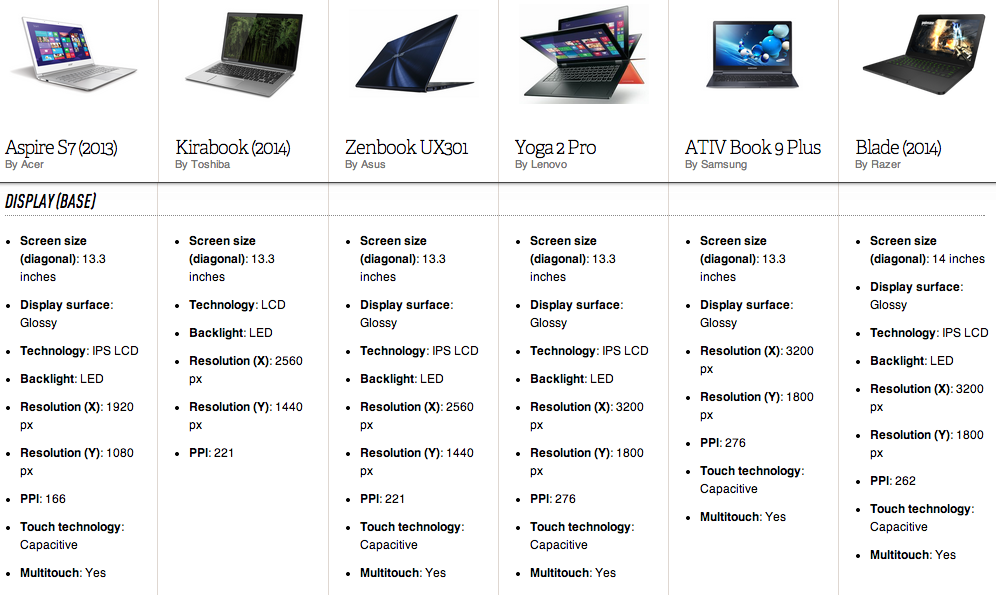
Spesifikasi PC juga memiliki peranan penting dalam memilih PC yang ingin dibeli, spesifikasi PC dipengaruhi dengan jenis PC yang anda pilih tentu saja. Spesifikasi seperti jenis dan besar CPU, RAM, Harddisk, VGA, baterai dan OS biasanya yang paling dilirik ketika ingin membeli PC baru. Spesifikasi PC yang dipilih juga tergantung dari kegiatan apa yang anda sering lakukan pada PC anda. Normalnya, semakin tinggi spesifikasi PC dari PC yang ingin anda beli maka semakin baik pula peforma dari PC anda namun dengan konsekuensi harga yang juga semakin tinggi tentunya. Cek juga apakah PC yang anda pilih sudah terdapat sistem operasi yang terinstal didalamnya, apakah asli sistem operasinya dan pilih sistem operasi paling terbaru. Memilih laptop yang keluaran baru juga direkomendasikan bagi anda karena berarti dukungan bagi laptop tersebut juga bakal lebih panjang.

Review PC yang diinginkan

image

Selanjutnya setelah melakukan tips – tips diatas adalah melihat Review PC yang ingin anda beli. Review PC diperlukan apakah PC yang kita pilih nanti memiliki peforma dan kualitas sesuai dengan apa yang kita inginkan. Review PC dapat dicari dan dilihat dari berbagai macam media dari media cetak hingga media digital. Sudah ada banyak macam blog, majalah, ebook dan video yang menawarkan review PC dari berbagai macam brand PC yang ada baik dengan Bahasa local atau Bahasa inggris. Oleh karena itu jangan lupa untuk melihat review dari PC yang anda pilih dan ingin anda beli. Review PC lain juga dapat dilakukan dengan membaca forum – forum dari jenis pc dan brand pc tersebut, apakah ada masalah yang terjadi pada orang – orang yang sudah membeli PC yang ingin anda beli. ini sangat penting karena akan menentukan apakah anda akan benar – benar membeli PC tersebut atau tidak.

Perhatikan Garansi PC

Ini merupakan alasan yang penting, perhatikan apakah PC yang akan anda beli memiliki garansi apa. Saya tentu sangat menyarankan anda membeli PC yang mempunyai garansi resmi, bukan distributor atau bahkan yang tidak bergaransi. Fungsi garansi tentu saja untuk memberikan kemudahan bagi anda agar jika terjadi masalah – masalah pada laptop anda, terdapat garansi atau perlindungan yang diberikan dari produsen pembuat PC tersebut. Sebelum deal membeli PC, pastikan anda menanyakan garansi PC yang akan anda beli, cek logo garansi resmi (Acer dan Asus sepertinya ada logo jika itu garansi atau produk resmi mereka), atau bahkan cek serial number PC tersebut di web apakah bergaransi resmi atau tidak. Adanya garansi berarti memberikan anda perlindungan terhadap PC anda kalua – kalua terjadi masalah dikemudian hari.

Demikian tips – tips yang bisa saya berikan bagi anda yang ingin membeli PC namun bingung dalam harus menentukan PC yang diinginkan. Tips – tips diatas merupakan beberapa pengalaman yang berasal dari pengalaman pribadi penulis saat ketika ingin membeli PC. Sekian dan Terimakasih.

Share:

Change Language

Search This Blog